
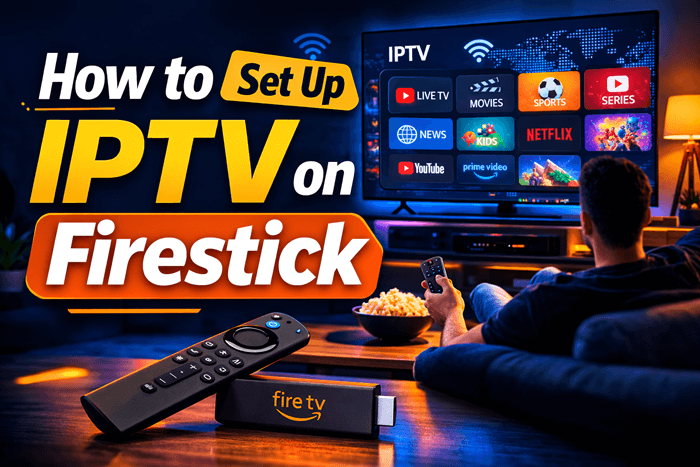
Streaming content on your Firestick becomes far more powerful when you add IPTV. Instead of relying only on traditional streaming apps, IPTV allows you to stream live TV channels, movies, and shows through internet-based services.
I’ve personally set this up on multiple Firestick devices, and once you know the process, it usually takes only a few minutes.
Tested Setup Details: We tested this IPTV setup process on multiple Firestick devices, including Fire TV Stick 4K, Fire TV Stick 4K Max, and a standard Fire TV Stick using common IPTV players such as IPTV Smarters Pro, TiviMate, and XCIPTV Player. During testing, we checked whether the app installed correctly, whether M3U and Xtream Codes login worked, whether channels loaded after login, and whether the player remained stable after restarting the Firestick.
In this guide, I’ll walk you through exactly how to set up IPTV on a Firestick step by step.
What You Need Before Setting Up IPTV
Before starting the setup, make sure you have the following:
- An Amazon Firestick connected to your TV
- A stable internet connection
- An active IPTV subscription (with M3U URL or Xtream Codes)
- An IPTV player app such as IPTV Smarters or TiviMate
Important: IPTV services provide the channels, while IPTV players simply stream them.
| Setup Test Area | What Was Checked | Result |
|---|---|---|
| Firestick Model | Amazon Fire TV Stick 4K, Fire TV Stick 4K Max, Fire TV Stick Lite | Setup worked on tested Fire TV Stick models |
| Fire OS Menu Path | Settings > My Fire TV > Developer Options > Install Unknown Apps | Developer Options was available or enabled through the About menu |
| Downloader App | Downloader by AFTVnews | Downloader installed and opened correctly from the Amazon Appstore |
| Unknown Apps Permission | Install Unknown Apps permission for Downloader | Downloader permission was enabled before installing the IPTV player |
| IPTV Player Install | IPTV Smarters Pro, TiviMate, or XCIPTV Player | IPTV player installed successfully after enabling Downloader permission |
| Login Method | Xtream Codes API and M3U Playlist URL | IPTV login worked when valid provider credentials were entered |
| Live TV Playback | Live TV channel categories and sample channel loading | Live TV channels loaded after playlist synchronization |
| VOD Playback | Movies and Series section inside the IPTV player | VOD content loaded when supported by the IPTV provider |
| EPG Loading | Electronic Program Guide / TV Guide section | EPG loaded when the provider supplied guide data |
| Restart Test | Firestick restart and IPTV app relaunch | Login details remained saved after restarting the Firestick |
Top IPTV Picks
Verified this month







Step 1: Enable Unknown App Installation
On most Firestick devices, go to Settings > My Fire TV > Developer Options > Install Unknown Apps, then turn it ON for Downloader.
If you do not see Developer Options, go to Settings > My Fire TV > About, select your Fire TV device name several times until Developer Options is enabled, then return to My Fire TV and open Developer Options.
On some Fire TV models, the menu may appear as Device or Device & Software instead of My Fire TV.
When I first set this up, this was the step that confused me the most—but once it’s enabled, everything else becomes very straightforward.
Step 2: Install the Downloader App
To install IPTV apps, you need a tool that allows downloading files directly on the device.
- Open the Amazon App Store on your Firestick.
- Search for Downloader.
- Select the app and click Download or Get.
- Open the app after installation.
The first time you open Downloader, it may ask for storage permission. Make sure to allow it so the app can download installation files.
Step 3: Download an IPTV Player
Now it’s time to install the IPTV player.
- Launch the Downloader app.
- In the URL field, enter the download link for your IPTV player.
- Click Go.
- Wait for the file to download.
- Click Install.
APK Safety Warning: Only download IPTV player apps from the official app website, Amazon Appstore when available, or a trusted developer source. Avoid random APK links from forums, shortened URLs, Telegram groups, or unknown file-hosting pages. Before installing, check the app name, developer name, version, file source, and permissions. After installation, delete the APK file from Downloader to save storage and reduce clutter.
Popular IPTV players include:
- IPTV Smarters Pro
- TiviMate IPTV Player
- XCIPTV Player
Personally, I’ve found IPTV Smarters and TiviMate the easiest for beginners because their interface is simple and easy to navigate.
Once installed, open the IPTV player.
Step 4: Add Your IPTV Subscription
After launching the IPTV app, you will need to log in using the credentials provided by your IPTV service.
Most IPTV services provide one of these login methods.
Option 1: Xtream Codes Login
Enter the following information:
- Username
- Password
- Server URL
This is usually the fastest and easiest login method.
Option 2: M3U Playlist URL
- Select Load Your Playlist or File URL.
- Enter the M3U URL provided by your IPTV provider.
- Click Add User.
The IPTV player will then automatically load the channel list and categories.
Step 5: Start Watching IPTV
After logging in, the IPTV player will sync your content.
Most IPTV apps organize everything into categories such as:
- Live TV
- Movies
- Series
- Catch-up TV
Simply select a category and start streaming.
The first time I finished this setup, it honestly felt like unlocking an entirely new TV experience because everything was organized inside one app.
Check the list of cheapest IPTV providers.
Tips for a Better IPTV Experience on Firestick
| Problem | First Check | Likely Cause | What to Try |
|---|---|---|---|
| Channels not loading | Confirm subscription is active | Expired login, wrong server URL, provider outage | Re-enter Xtream/M3U details, restart app, contact provider |
| Buffering | Run a speed test on Firestick | Weak Wi-Fi, overloaded IPTV server, low device storage | Restart router, move Firestick closer, clear cache, test another channel |
| App not installing | Check Install Unknown Apps setting | Downloader permission not enabled | Enable permission for Downloader and retry |
| EPG not loading | Check playlist/portal support | Provider does not support EPG or guide URL is wrong | Refresh playlist, ask provider for EPG URL |
| VOD not playing | Test live TV and VOD separately | VOD server issue or unsupported codec | Try another title, restart player, test another IPTV app |
| VPN makes streaming slower | Compare speed with VPN on/off | Distant VPN server or overloaded VPN location | Try nearby server or disable VPN for testing |
| Storage warning | Check Firestick storage | Too many apps/APK files/cache | Delete unused apps and old APK files |
Troubleshooting Limitation: Not every IPTV problem can be fixed on the Firestick. If multiple channels fail, EPG is missing, or VOD does not load across different apps, the issue is likely with the IPTV provider, not your device.
Legal Disclaimer
IPTV player apps themselves are legal media players. However, the legality of IPTV streaming depends on the content provider. Always make sure the IPTV service you use has the proper rights to distribute the content in your region.
FAQs
Is IPTV legal on Firestick?
Yes. Installing IPTV apps on Firestick is legal. However, legality depends on whether the IPTV provider has proper licensing for the content they distribute.
What is the best IPTV player for Firestick?
Some of the most popular IPTV players include IPTV Smarters, TiviMate, and XCIPTV Player. Each supports M3U playlists and Xtream Codes login.
Do you need a VPN for IPTV on Firestick?
A VPN is not always required, but many users choose to use one for privacy and to avoid possible ISP throttling during streaming.
Why is IPTV buffering on Firestick?
Buffering usually happens due to slow internet speeds, overloaded IPTV servers, or too many apps running on the Firestick.
Final Thoughts
Setting up IPTV on Firestick is actually much easier than most people expect. Once you install an IPTV player and enter your subscription details, you can access live TV, movies, and series all from one place.
With the right IPTV service and a stable internet connection, your Firestick can easily turn into a powerful home entertainment hub.