
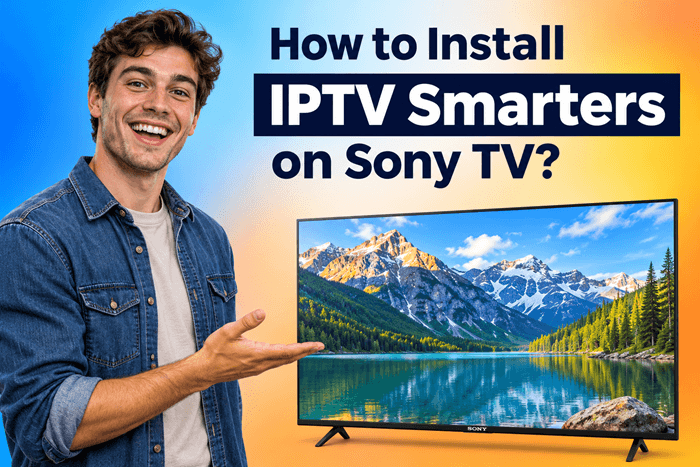
You can install Smarters on a compatible Sony Google TV or Android TV by finding the genuine app in the TV’s app store and selecting Install. The developer currently links to an Android TV app called Smarters Pro, published by Tech Smarters, so its name may differ from older IPTV Smarters tutorials. Older non-Android Sony TVs require a different approach, usually a compatible HDMI streaming device. This guide covers compatibility, installation, playlist setup, and common problems using published documentation rather than hands-on testing.
Top IPTV Picks
Verified this month







Check Which Sony TV You Have
Start by identifying your television’s operating system. BRAVIA is Sony’s television brand, so the name alone does not tell you whether your TV supports Android apps.
Press Home and examine the interface, then confirm your model through Sony’s support website or manual. Google TV and Android TV have different home-screen layouts; Sony provides illustrated examples to help identify them.
| Sony TV platform | Installation route | If direct installation is unavailable |
|---|---|---|
| Google TV | Search for the compatible app through the Apps tab | Check compatibility and regional availability |
| Android TV | Search through Google Play Store | Check compatibility before considering a verified APK |
| Older non-Android TV | Android app installation is unsupported | Use a compatible HDMI streaming device |
Before continuing, have these ready:
- An internet connection.
- A Google account for Google Play installation.
- Available space in the TV’s internal storage.
- Your existing playlist or content-service details.
Smarters is a media player. Installing it does not supply channels, movies, or a content subscription; you must add your own authorized content.
Install Smarters on Sony Google TV or Android TV
Choose the instructions matching your television. Menu labels can vary with the model and software version.
Installation on Sony Google TV
- Press Home on your remote.
- Open the Apps tab.
- Select Search for apps, or use the home-screen search.
- Search for Smarters Pro.
- Open the result and verify that the developer is Tech Smarters.
- Select Install if the app is available for your television.
- When installation finishes, select Open.
Some Sony Google TVs do not display a separate Play Store icon on the home screen. You can search through the Apps tab or use the remote’s microphone to say “open Google Play.”
Do not choose an app solely because its icon or name resembles an older tutorial. Check the publisher and supported device type before installing.
Installation on Sony Android TV
- Press Home.
- Open Apps, then Google Play Store.
- If necessary, select Get more apps to reach the store.
- Search for Smarters Pro.
- Verify the developer and select the compatible listing.
- Choose Install, then Open.
These steps follow Sony’s documented Android TV installation route. If the app does not appear, continue with the availability checks below instead of assuming your TV is faulty.
What to Do If Smarters Is Missing From the Store
Check the current app name first. Older instructions may refer to IPTV Smarters Pro, while the developer’s current Android TV download points to Smarters Pro.
Next, check whether your exact model and country are supported. Sony explains that apps can be missing because they lack a compatible TV version or are unavailable in your region. Finding an app on your phone does not establish that your television can install it.
Sideloading means installing an Android installation file, called an APK, outside Google Play. Consider it only when the developer supplies a verifiable download suitable for your TV’s Android version.
Android 8.0 and later require permission for the particular app performing the installation. The relevant setting is Install unknown apps, although its location can differ between televisions. If you cannot find it, consult your model’s documentation rather than following an unrelated phone tutorial.
Avoid random APK links and Downloader codes from comments. Keep Google Play Protect enabled, and investigate security warnings before proceeding.
Add Your Playlist or Service Details
Once the app opens, use the content-entry options available in that version. Older IPTV Smarters screenshots may show different buttons.
The current Smarters Pro listing confirms support for M3U and JSON playlists. An M3U playlist contains references to media streams; it does not include a subscription by itself.
For an M3U playlist:
- Open the app’s playlist-addition option.
- Choose URL or file entry, if offered.
- Enter the complete playlist address, or select the supported local file.
- Add a recognizable playlist name if requested.
- Save and allow the content list to load.
If your version offers a username, password, and server-address form, enter the details supplied for that connection method. Do not put a complete M3U URL into a server-address field unless your provider specifically instructs you to.
An app account and a content-provider account may be separate. Use the appropriate credentials for each prompt, and keep playlist URLs private because they can contain access tokens.
Confirm setup with this checklist:
- The app opens successfully.
- Your playlist appears.
- An authorized stream plays.
Fix Installation and First-Launch Problems
Identify where the failure happens before changing settings. An installation error requires different checks from an app that opens but cannot access content.
| Problem | What to check | Next action |
|---|---|---|
| App missing from search | App name, TV compatibility, region | Compare the current developer listing with your TV |
| “App not installed” or package error | Storage, Android version, package suitability | Free space and verify requirements |
| Installation permission unavailable | Permission for the installer app | Consult model-specific settings |
| App opens but freezes | App state or outdated software | Force-stop, restart, and check updates |
| Playlist rejected | Entry method, URL, credentials | Recheck details with the content provider |
For freezing or loading problems, Sony documents force-stopping the app and clearing its cache. Clearing app data is a separate step that can remove saved settings, so keep your setup details before using it.
Options for Older Sony TVs Without Android
You cannot install an Android APK directly on a non-Android Sony television. Copying the file to USB does not change that limitation. Sony confirms that its non-Android models cannot download additional Android apps.
A compatible streaming device connected through HDMI provides a separate platform for installation. Confirm that the device supports the genuine app before buying it.
Casting is another possibility when both the source app and receiving device support it. Casting displays content on the television; it does not install Smarters on the Sony TV itself.
The key is to identify your TV platform first, install the verified compatible app, and then add your own content details. For an older non-Android model, use a supported external device.