
Install IPTV Smarters Pro on Firestick Step-by-Step
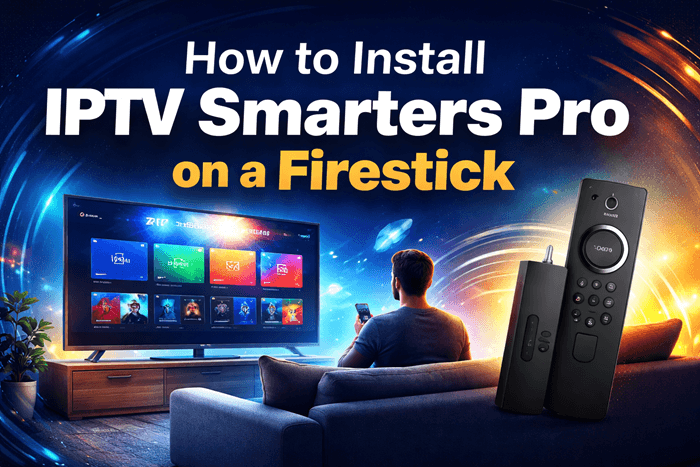
IPTV Smarters Pro is not available on the Amazon App Store, which means getting it onto your Firestick requires sideloading — a process of installing an APK file from outside Amazon’s official ecosystem. While that sounds technical, it comes down to a few settings changes and one free utility app. This guide walks you through every step, from unlocking hidden developer settings to entering your IPTV credentials so you can start streaming right away.
What You Need Before You Start
Before changing any settings, make sure you have the following ready:
Compatible Firestick Device
| Firestick Model | Compatible | Notes |
| Fire TV Stick Lite | Yes | May have limited storage; clear space before installing |
| Fire TV Stick 3rd Gen | Yes | Recommended minimum for reliable performance |
| Fire TV Stick 4K | Yes | Good performance for HD and 4K streams |
| Fire TV Stick 4K Max | Yes | Best overall experience for IPTV streaming |
| Fire TV Cube | Yes | Top-tier performance, ideal for heavy use |
| Fire TV Stick 1st / 2nd Gen | Limited | Low storage and weak processor; not recommended |
Other Requirements
- An active IPTV subscription: Your provider will supply either an M3U URL or Xtream Codes login credentials (username, password, and server URL). You need at least one of these to load channels after installation.
- A stable internet connection: A minimum of 10 Mbps is recommended for standard definition streams. For HD or 4K content, 25 Mbps or higher is preferable.
- Optional but recommended — a VPN: Many ISPs throttle IPTV traffic. Running a VPN on your Firestick before streaming can reduce buffering and protect your privacy.
If you do not yet have your IPTV credentials, contact your provider before continuing. The app itself is completely free to download and install.
Top IPTV Picks
Verified this month




Step-by-Step Process to Install IPTV Smarters Pro on Firestick
Step 1: Enable Apps from Unknown Sources on Firestick
Amazon restricts Firestick to only allow apps from its own store by default. Before you can sideload IPTV Smarters Pro, you need to unlock two things: Developer Options (which are hidden on newer devices) and the unknown sources permission.
Enable Developer Options
Developer Options are not visible by default on most current Firestick models. To unlock them, go to Settings → My Fire TV → About, then highlight Fire TV Stick and press the OK button on your remote seven times in a row. You will see a confirmation message at the bottom of the screen once Developer Options are enabled. Go back to the My Fire TV menu and you will now see Developer Options listed. Open it and turn on both ADB Debugging and Apps from Unknown Sources.
Allow the Downloader App to Install Unknown Apps
This is the step most guides overlook, and skipping it is one of the most common reasons the installation fails. After you install the Downloader app in the next step, return to Settings → Applications → Manage Installed Applications, locate Downloader, and enable the Install Unknown Apps toggle specifically for it. Amazon requires this permission to be granted on a per-app basis, so the global Developer Options setting alone is not enough.
Step 2: Install the Downloader App
Downloader is a free utility fully available on the Amazon App Store. It functions as both a browser and a file manager, letting you pull APK files directly onto your Firestick without needing a computer or any additional tools.
From your Firestick home screen, press the search icon and type Downloader. Select the app from the results — it has a distinctive orange icon — and press Get or Download. Installation takes under a minute. Once complete, go back and finish the per-app unknown sources permission for Downloader described in Step 1 before moving forward.
Step 3: Download and Install IPTV Smarters Pro APK
With Downloader installed and all permissions configured, you are ready to pull the IPTV Smarters Pro APK directly onto your device.
Enter the APK Code in Downloader
Open the Downloader app and select the URL bar on the right side of the home screen. Using your Firestick remote, enter the numeric shortcode 730116 and press Go. This code redirects to the official IPTV Smarters Pro download page automatically. Using a short numeric code is significantly easier than typing a full web address with a Firestick remote, and it takes you directly to the correct file without any additional navigation.
Run the Installation and Grant Permissions
Once the APK finishes downloading, Downloader will automatically prompt you to install it. Select Install and allow 20 to 40 seconds for the process to complete. When done, you will be given the option to open the app or delete the APK file. You can safely delete the APK to recover storage space — the installed app will remain on your device regardless.
If you encounter a “Parse Error” at this stage, it almost always means the APK did not download fully. Go back into Downloader, delete the incomplete file from its built-in file manager, and re-enter shortcode 730116 to download it fresh on a stable connection.
Step 4: Set Up IPTV Smarters Pro with Your IPTV Subscription
Installing the app is only half the process. You now need to connect it to your provider’s content using the credentials they supplied. When you open IPTV Smarters Pro for the first time, scroll through and accept the Terms of Use before you reach the main screen.
Adding Your Playlist via M3U URL
On the IPTV Smarters Pro home screen, select Add User and choose the Load Your Playlist or File/URL option. Enter a name for your profile (anything works), paste your M3U URL into the URL field, then tap Add User to confirm. The app will begin loading your channel list, which can take a minute depending on the size of the playlist. M3U URLs can be long, so if your provider also offers Xtream Codes credentials, those may be easier to type using a Firestick remote.
Adding Your Playlist via Xtream Codes API
If your provider gave you a separate username, password, and server address, select the Xtream Codes API login option on the Add User screen and fill in each field exactly as your provider sent them. Note that traditional Xtream Codes support has become inconsistent — some providers have moved away from this format, and there is no guarantee the API credentials will work in every case. If your Xtream Codes login fails, contact your provider to confirm the credentials are current or request an M3U URL as an alternative.
| Login Method | What You Need | Reliability Note |
| M3U URL | Single playlist URL | Widely supported, recommended first choice |
| Xtream Codes API | Username, password, server URL | Less consistent support; verify with your provider |
Troubleshooting Common Installation and Playback Issues
App Won’t Install or Shows “Parse Error”
| Error | Cause | Fix |
| Parse Error on install | APK downloaded incompletely or corrupted | Delete the file in Downloader, re-enter code 730116, and download fresh |
| Install button greyed out | Unknown Apps permission not granted for Downloader | Go to Settings → Applications → Manage Installed Apps → Downloader → Enable Install Unknown Apps |
| Developer Options not visible | Hidden by default on newer Firestick models | Go to Settings → My Fire TV → About → click Fire TV Stick 7 times to unlock |
| “App not installed” message | Conflicting old version or insufficient storage | Uninstall previous version first, or clear storage space and retry |
Channels Not Loading or Buffering After Setup
| Issue | Cause | Fix |
| All channels buffer constantly | ISP throttling or slow connection | Run a speed test; enable a VPN to bypass throttling |
| Specific channels show black screen | Stream offline on provider’s end | Switch to another channel or try a different stream quality |
| Authentication error on login | Expired or incorrect IPTV credentials | Contact your provider to verify subscription status and credentials |
| App loads but no channels appear | Wrong login method or malformed URL | Double-check M3U URL or Xtream Codes details; try the alternative login method |
How to Update IPTV Smarters Pro on Firestick
Because IPTV Smarters Pro was sideloaded rather than installed through the Amazon App Store, it will not receive automatic updates. You need to manually repeat the download process whenever a new version is released.
To check your installed version, open the app, navigate to Settings within IPTV Smarters Pro, and look for the version number listed there. Then visit the official IPTV Smarters website to compare it against the latest release. If an update is available, open Downloader, enter shortcode 730116 again, and install the new APK over the existing app. You do not need to uninstall the old version first — installing over it will update the app while keeping your playlists and profile settings intact.
Conclusion
Installing IPTV Smarters Pro on Firestick requires unlocking hidden Developer Options, using the Downloader app with shortcode 730116 to sideload the APK, and connecting the app to your IPTV provider’s credentials. The process has a few more steps than a standard app install, but once everything is set up correctly, the app delivers a clean, stable streaming experience. Keep the shortcode saved somewhere handy so future updates take only a couple of minutes.
Frequently Asked Questions
Is IPTV Smarters Pro free to install on Firestick?
Yes, IPTV Smarters Pro is free to download and install on Firestick. The only cost involved is your IPTV subscription, which is purchased separately from a third-party provider.
Why can’t I find IPTV Smarters Pro on the Amazon App Store?
IPTV Smarters Pro is not listed on the Amazon App Store and must be sideloaded onto Firestick using the Downloader app and an APK file downloaded from the official source.
What is the Downloader code for IPTV Smarters Pro on Firestick?
The current Downloader shortcode for IPTV Smarters Pro is 730116. Enter this code in the Downloader app URL bar and press Go to reach the official download page.
Do I need a VPN to use IPTV Smarters Pro on Firestick?
A VPN is not required but is strongly recommended. It helps prevent ISP throttling, reduces buffering on busy connections, and adds a layer of privacy when streaming IPTV content.
Why is IPTV Smarters Pro showing a black screen or not loading channels?
A black screen is usually caused by ISP throttling, expired IPTV credentials, or a specific stream being offline on the provider’s end. Try enabling a VPN, verifying your subscription is active, or switching to a different channel.
Can I install IPTV Smarters Pro on an older Firestick?
IPTV Smarters Pro can be installed on older Firestick models, but first and second generation devices may have limited storage and weaker processors that affect streaming performance. Clearing unused apps and freeing up storage can help, though a newer model is recommended for a smoother experience.