
How to Install & Use TiviMate: Complete Setup Guide
TiviMate is one of the most popular IPTV players available for Android-based devices, offering a clean interface, robust EPG support, and powerful features that make watching live TV simple and enjoyable. Whether you just signed up for an IPTV subscription or are switching from another player, this guide walks you through everything — from installation to daily use — so you can get up and running without confusion.
What Is TiviMate?
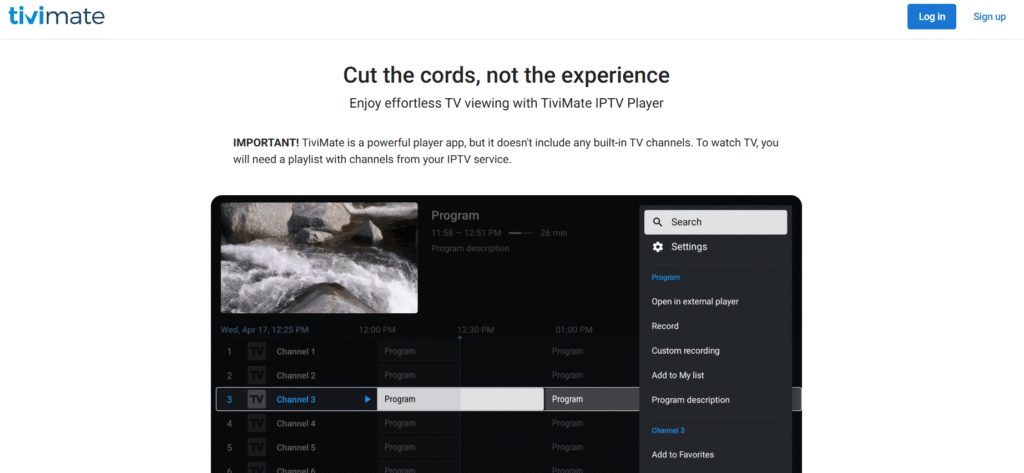
TiviMate is an IPTV (Internet Protocol Television) player app that lets you stream live TV channels through an internet connection using a playlist provided by your IPTV service. It does not provide any content on its own — think of it as the TV itself, while your IPTV subscription is the cable service powering it.
The app is widely used because of its smooth performance, intuitive channel navigation, electronic program guide (EPG) support, and recording capabilities. It works with any IPTV subscription that provides an M3U URL or Xtream Codes login.
Supported Devices and Requirements
TiviMate runs on Android-based platforms. Here is where you can use it:
| Device Type | Examples |
| Fire TV Stick / Fire TV | Stick Lite, Stick 4K, Fire TV Cube |
| Android TV / Google TV | NVIDIA Shield, Chromecast with Google TV, Mi Box |
| Android Phones & Tablets | Most devices running Android 5.0 or later |
You will also need an active IPTV subscription from a third-party provider that gives you either an M3U playlist URL or Xtream Codes credentials. TiviMate does not supply any channels or streaming content itself.
How to Install TiviMate
TiviMate is available on the Google Play Store for Android TV and standard Android devices. Fire TV users need to sideload it since it is not listed on the Amazon Appstore.
On Fire TV Stick / Fire TV
Sideloading means installing an app from outside the official store. Here is how to do it on a Fire Stick:
- From the Fire TV home screen, go to Settings > My Fire TV > Developer Options
- Turn on Apps from Unknown Sources
- Go back to the home screen and search for the Downloader app, then install it
- Open Downloader and enter the TiviMate APK URL (search for the latest official TiviMate APK link from the TiviMate website or a trusted source)
- Once downloaded, tap Install and wait for the process to complete
- After installation, you can delete the APK file to free up space
Note: The exact steps may vary slightly depending on your Fire OS version, but the core process remains the same across Fire Stick Lite, 4K, and Fire TV Cube models.
On Android TV / Google TV
- Open the Google Play Store on your Android TV or Google TV device
- Search for TiviMate IPTV Player
- Select the app and tap Install
- Once installed, launch it from your app library
This is the most straightforward installation path since no sideloading is required.
On Android Phone or Tablet
- Open the Google Play Store on your phone or tablet
- Search for TiviMate IPTV Player
- Tap Install and wait for the download to complete
- Open the app and proceed to playlist setup
How to Add Your IPTV Playlist to TiviMate
After installing TiviMate, the first thing you need to do is connect your IPTV subscription. There are two ways to do this depending on what your provider gives you.
Using an M3U URL
An M3U URL is a direct link to a playlist file that contains all your channels. Your IPTV provider will send this link after you subscribe.
- Open TiviMate and tap Add Playlist
- Select M3U Playlist
- Enter your M3U URL in the field provided
- Give the playlist a name, then tap Next
- TiviMate will load all available channels automatically
Using Xtream Codes / API
Xtream Codes is a login-based method where instead of a URL, your provider gives you a server address, username, and password. Many providers prefer this format because it supports catch-up TV and EPG integration more reliably.
- Open TiviMate and tap Add Playlist
- Select Xtream Codes API
- Enter the server URL, username, and password from your IPTV provider
- Tap Next and TiviMate will connect and import your channel list
If you are unsure which format your provider uses, check your welcome email or contact their support team.
Setting Up the Electronic Program Guide (EPG)
The EPG is the on-screen TV guide that shows what is currently airing and what is coming up on each channel. Without it, you are just browsing a list of channels with no scheduling information.
If you connected via Xtream Codes, TiviMate often pulls EPG data automatically. For M3U users, you may need to add an XMLTV URL manually:
- Go to Settings > Playlist and select your playlist
- Tap EPG Source and enter the XMLTV URL provided by your IPTV service
- Save and allow TiviMate to refresh the guide data
EPG data can take a few minutes to load initially. Once set up, it updates automatically based on the refresh interval you configure.
How to Use TiviMate: Core Features
Once your playlist and EPG are connected, TiviMate gives you a full TV-like experience. Here is how to make the most of its main features.
- Navigating Channels and Categories: TiviMate organizes your channels into groups based on how your IPTV provider has set up the playlist. You can browse by category (Sports, News, Movies, etc.) using the side panel. Press the menu or back button on your remote to open the panel while watching a channel.
- Managing Favorites: You can build a custom favorites list to keep your most-watched channels in one place. Highlight a channel, press and hold the select button (or long-press on touch devices), and choose Add to Favorites. You can create multiple favorites groups to organize content by theme or household member.
- Recording Live TV: TiviMate Premium allows you to record live channels directly to an external USB drive or internal storage. To start a recording, navigate to the channel you want to record, open the options menu, and select Record. You can also schedule recordings from the EPG by selecting a future program and tapping the record option.
- Catch-Up TV: Catch-up lets you rewind and watch content that already aired, similar to a DVR feature. This only works if your IPTV provider supports catch-up and you are connected via Xtream Codes. When catch-up is available for a channel, you will see a clock icon next to it in the EPG.
TiviMate Free vs. Premium: What’s the Difference?
TiviMate can be used for free, but several of its most useful features are locked behind a Premium upgrade. Premium is a one-time purchase made through a separate companion app called TiviMate Premium on the Google Play Store — it is not an in-app purchase within TiviMate itself, which trips up many users.
| Feature | Free | Premium |
| Single playlist | Yes | Yes |
| Multiple playlists | No | Yes |
| EPG support | Yes | Yes |
| Live TV recording | No | Yes |
| Catch-up TV | No | Yes |
| Parental controls | No | Yes |
| Panel customization | Limited | Full |
| Multiple device use | No | Yes (up to 5) |
Common Issues and How to Fix Them
Playlist Not Loading or Buffering
If your channels are not loading or playback keeps stuttering, try these fixes:
- Check your internet speed: IPTV streams typically require at least 10-25 Mbps for HD content
- Change the video decoder: Go to Settings > Player and switch between hardware and software decoding
- Increase the buffer size: In Player settings, raise the buffer value to reduce interruptions
- Contact your IPTV provider: The issue may be on their server side, especially during peak hours
EPG Not Showing or Incorrect
- Make sure the XMLTV URL is entered correctly in your playlist settings
- Trigger a manual EPG refresh under Settings > Playlist > Update EPG
- Some channels may not have EPG data if your provider does not map them — this is a provider limitation, not a TiviMate problem
App Not Installing (Sideload Errors)
- Confirm that Apps from Unknown Sources is enabled in your Fire TV developer settings
- Make sure you are downloading the APK from the official TiviMate source to avoid corrupted or outdated files
- If Downloader fails to fetch the file, check that your internet connection is stable and try again
Conclusion
TiviMate is a powerful IPTV player that becomes straightforward to use once you get past the initial setup. Install it through the Play Store on Android TV or sideload it on Fire Stick, connect your IPTV playlist using either M3U or Xtream Codes, and configure your EPG for a full channel guide experience. For anyone serious about using it long-term, upgrading to Premium unlocks recording and catch-up features that make it a genuinely strong alternative to traditional cable TV setups.
Frequently Asked Questions
Is TiviMate free or do you need to pay for it?
TiviMate is free to download and use with basic features. A one-time Premium upgrade, purchased through the separate TiviMate Premium app on Google Play, unlocks advanced features like recording, catch-up TV, multiple playlists, and parental controls.
Is TiviMate legal to use?
TiviMate itself is a fully legal IPTV player app. The legality of your streaming depends entirely on the IPTV subscription you connect to it. Using licensed, legitimate IPTV services is legal; using unauthorized streams may violate copyright laws in your country.
Why is TiviMate not on the Amazon Appstore?
TiviMate is not officially listed on the Amazon Appstore, so Fire TV Stick users must sideload it using the Downloader app after enabling Apps from Unknown Sources in developer settings.
Can I use TiviMate without an IPTV subscription?
No. TiviMate is a player app and does not provide any channels or content. You need an active IPTV subscription from a third-party provider that supplies an M3U URL or Xtream Codes login to access any streams.
How do I buy TiviMate Premium?
Search for “TiviMate Premium” on the Google Play Store and install the companion app. Opening it while TiviMate is installed on the same device will activate the Premium features. It is a one-time purchase, not a subscription.
Can I use TiviMate on multiple devices with one Premium account?
Yes. TiviMate Premium supports use on up to five devices linked to the same Google account, making it practical for household use across a Fire Stick, Android TV box, and phone simultaneously.