
Set Up IPTV on Android TV and Smart TV (Step-by-Step Guide)
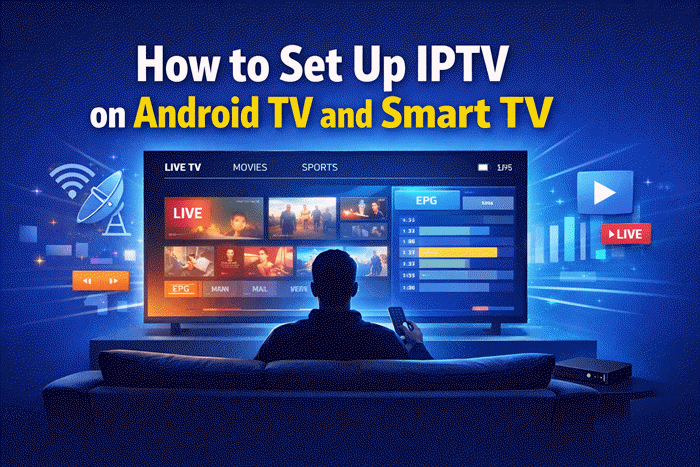
Setting up IPTV on your TV lets you stream live channels, movies, and shows directly through your internet connection. Whether you have an Android TV or a Smart TV from Samsung or LG, the process is straightforward once you know which app to use and how to connect your subscription. This guide walks you through everything from prerequisites to troubleshooting, so you can start watching without confusion.
What You Need Before You Start
Before installing anything, make sure you have the following ready:
An active IPTV subscription with either an M3U URL or Xtream Codes login (a username, password, and server URL). Your IPTV provider sends these details after purchase.
A stable internet connection. For smooth playback, a minimum speed of 10 Mbps is recommended for standard definition streams. HD or 4K content typically requires 25 Mbps or more. A wired Ethernet connection is more reliable than Wi-Fi for IPTV.
A compatible device. This guide covers two distinct categories:
- Android TV devices (including Nvidia Shield, Chromecast with Google TV, and Android TV boxes)
- Non-Android Smart TVs such as Samsung (Tizen OS) and LG (webOS)
These two device types use different apps and setup methods, so identifying yours first saves time.
Best IPTV Apps for Android TV
Choosing the right app matters because not all players support every playlist format or offer the same interface quality. Here are the most reliable options currently available:
| App | Key Strength | M3U Support | Xtream Codes | Free or Paid |
| TiviMate | Best overall UI, EPG support | Yes | Yes | Freemium (premium unlocks features) |
| IPTV Smarters Pro | Beginner-friendly, multi-profile | Yes | Yes | Free (some versions paid) |
| Perfect Player | Lightweight, customizable | Yes | No | Free |
| GSE Smart IPTV | Multi-device sync, advanced options | Yes | Yes | Free with optional upgrades |
For most users, TiviMate offers the most polished experience on Android TV. IPTV Smarters Pro is a strong alternative if you prefer a simpler interface or need to manage multiple accounts.
How to Install and Set Up IPTV on Android TV
Installing the IPTV App
Via Google Play Store (recommended method):
- Open the Google Play Store on your Android TV
- Search for your chosen app (e.g., “TiviMate” or “IPTV Smarters Pro”)
- Select the app and click Install
- Wait for the installation to complete, then open the app
Via APK sideloading (for apps not available on the Play Store):
Some IPTV apps are removed from the Play Store periodically. In that case, you can sideload the APK file using the Downloader app.
- Go to Settings > Device Preferences > Security and restrict unknown sources, then enable “Allow installation from unknown sources” for the Downloader app
- Install Downloader from the Play Store
- Open Downloader and enter the direct APK URL provided by the app developer or your IPTV provider
- Follow the on-screen prompts to download and install the APK
Adding Your IPTV Playlist to the App
Once the app is installed, you need to connect it to your subscription. Most providers offer two formats:
Adding via M3U URL:
- Open the app and select “Add Playlist” or “Add New Playlist”
- Choose the “M3U URL” option
- Paste the M3U link provided by your IPTV provider
- Give the playlist a name and confirm
- Wait for the channel list to load (this can take 1 to 3 minutes depending on list size)
Adding via Xtream Codes (API login):
- Select “Xtream Codes API” or “Login with credentials” in the app
- Enter your server URL, username, and password exactly as provided
- Tap Connect or Login
- The app will automatically pull your channel list and VOD content
Adding via local M3U file: If your provider gave you a downloadable playlist file, transfer it to a USB drive, plug it into your TV, and select “Add from local storage” within the app.
Navigating Channels and EPG Setup
Once your playlist loads, you will see your channels organized into groups. Most apps let you browse by category, search by name, or mark favorites for quick access.
To enable the Electronic Program Guide (EPG), which shows a TV schedule grid for each channel:
- Go to the app’s settings and look for “EPG” or “Program Guide”
- Enter the EPG URL provided by your IPTV service (usually ends in .xml or .gz)
- Set the EPG refresh interval (every 24 hours is standard)
- Return to the channel list, and schedule data should appear within a few minutes
Not all IPTV providers include EPG data. If yours does not, apps like TiviMate support third-party EPG sources.
How to Set Up IPTV on Samsung or LG Smart TV
Samsung and LG Smart TVs do not run Android OS, which means you cannot install apps like TiviMate directly. Instead, these TVs rely on their own app ecosystems with a smaller but workable selection of IPTV players.
Samsung Smart TV (Tizen OS)
Samsung TVs run Tizen, a closed operating system with limited third-party app support. These two apps are the most commonly used:
Smart IPTV:
- Search for “Smart IPTV” in the Samsung Smart Hub app store and install it
- Open the app and note the MAC address displayed on screen
- Go to the Smart IPTV website on your phone or computer, enter the MAC address, and upload your M3U playlist
- Restart the app on your TV, and your channels will appear
- Note: Smart IPTV charges a one-time activation fee after a free trial period
SS IPTV:
- Install SS IPTV from the Samsung App Store
- Open the app and navigate to Settings > Playlist
- Enter your M3U URL directly or upload a file via the SS IPTV web interface using your device’s MAC address
Sideloading APKs on Tizen OS is not straightforward and generally not recommended for everyday users, as it requires developer mode activation and carries compatibility risks.
LG Smart TV (webOS)
LG’s webOS platform offers slightly more flexibility. The most reliable options are:
SS IPTV:
- Open the LG Content Store and search for “SS IPTV”
- Install and open the app
- Go to Settings and add your M3U URL or use the web interface with your device MAC address to upload the playlist
IPTV Smarters (web app version): Some LG TV models support browser-based access to IPTV Smarters. Open the LG web browser, navigate to the IPTV Smarters web portal, and log in with your Xtream Codes credentials. This works without any installation but may have a less polished experience compared to a native app.
As with Samsung, fully custom app installs are limited on webOS without developer tools, so sticking to the Content Store apps is the practical choice for most users.
Common IPTV Setup Problems and Fixes
| Problem | Likely Cause | Fix |
| Constant buffering or freezing | Slow internet or server overload | Run a speed test, switch to Ethernet, or try a VPN with a closer server |
| Channels not loading at all | Expired subscription or wrong M3U URL | Confirm your credentials with your provider and re-enter the playlist |
| EPG not showing schedule data | Incorrect or missing EPG URL | Re-enter the EPG URL in settings or ask your provider for the correct link |
| App won’t install via APK | Sideload permissions not enabled | Enable unknown sources in device settings for the Downloader app |
| Some channels buffer, others don’t | Channel-specific server issues | Switch stream quality settings or contact your provider about that channel |
| Black screen on specific channels | Codec incompatibility | Try a different player app or enable hardware decoding in app settings |
If buffering is a recurring issue, a VPN can sometimes help by bypassing ISP throttling on streaming traffic. Choose a VPN with servers close to your IPTV provider’s location for best results.
Conclusion
Getting IPTV running on your Android TV or Smart TV comes down to three things: having a valid subscription, choosing the right app for your device, and entering your playlist details correctly. Android TV users have the widest app selection, with TiviMate and IPTV Smarters Pro being the top choices. Samsung and LG TV owners should rely on Smart IPTV or SS IPTV through their respective app stores. Once your channels load and your EPG is configured, the setup requires very little ongoing maintenance.
Frequently Asked Questions
Can I use IPTV on a Smart TV without an Android box?
Yes, Samsung and LG Smart TVs support IPTV through apps like Smart IPTV and SS IPTV available in their native app stores. No external Android box is required.
What is the best free IPTV app for Android TV?
IPTV Smarters Pro and GSE Smart IPTV are the most capable free options for Android TV, both supporting M3U playlists and Xtream Codes logins at no cost.
How do I find my IPTV M3U URL or Xtream Codes login?
Your IPTV provider sends these credentials by email after you purchase a subscription. If you cannot locate them, contact your provider directly to have the details resent.
Why does my IPTV keep buffering on my Smart TV?
Buffering is usually caused by a slow internet connection, Wi-Fi interference, or server congestion on the provider’s end. Switching to a wired connection or using a VPN often resolves the issue.
Is it legal to set up IPTV on a Smart TV?
Installing an IPTV app is completely legal. The legality depends entirely on your subscription source. Licensed services are legal; unauthorized providers that redistribute content without rights are not. Read this guide.
Do I need a VPN to use IPTV on my TV?
A VPN is not required, but it can improve streaming stability if your ISP throttles video traffic and adds a layer of privacy. Choose a VPN that supports router-level or Smart TV installation for the easiest setup.